How to Save a TikTok LIVE Before It Disappears
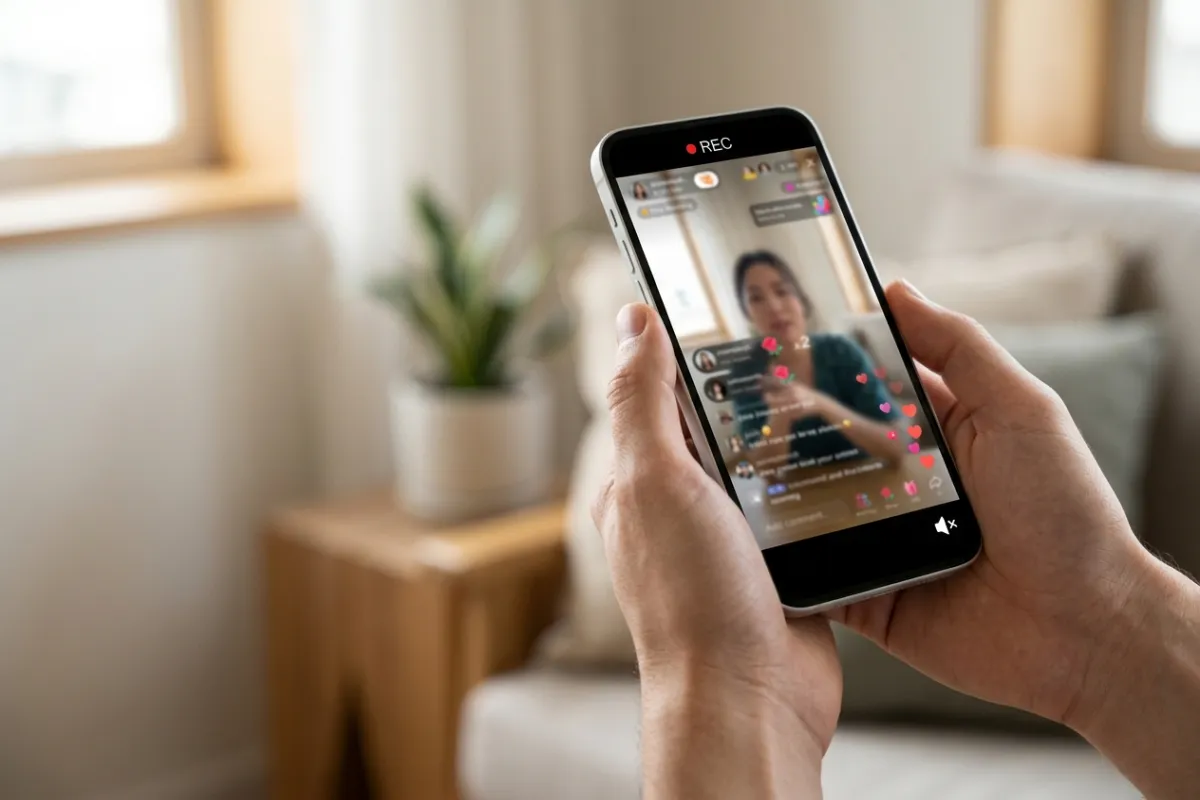
A creator you follow goes live with something you know you'll want again — a rare Q&A, a launch, a set, a conversation. Or it's your live, and you'd like the recording afterward. Either way, the clock is running the second it starts.
The short version: to save a TikTok LIVE before it disappears, you have to capture it while it's still live — TikTok keeps no copy for viewers, and only a short, opt-in replay for the creator. There's no "save" button on a live you're watching, and once the broadcast ends un-saved, it's gone. So saving a TikTok live is really a race: start the save while it airs, not after.
Why you have to act before the live ends
TikTok doesn't archive lives for the people watching them. A live stream is broadcast in the moment; when it ends, TikTok doesn't hand viewers a recording, a replay, or a download. The only native copy that ever exists is one the creator can opt into — and even that isn't guaranteed or permanent. That's the whole reason "save it before it disappears" is the right framing: you're not retrieving something later, you're capturing something now, before it's gone.
- 0 — save, download, or bookmark buttons TikTok gives a viewer for a live they're watching.
- Up to 30 days — how long a creator's LIVE Replay stays available, and only if they turned it on before going live (TikTok LIVE Replay help).
- 0 — ways to switch on saving after a live has already ended. Every save option has to be set before or during the broadcast.
If it's your own live: turn on saving before you start
If you're the one going live, TikTok gives you two built-in options — but both have to be set before you start broadcasting, and neither can be switched on once you've ended.
- Save LIVE Replay — turn this on in your LIVE settings before you go live, and TikTok posts a replay to your profile after the stream, viewable like a normal video for up to 30 days. It's opt-in per stream and doesn't always appear instantly, so treat it as a convenience, not a guarantee.
- Save to device — some accounts also have a toggle to save the broadcast to your own gallery after it ends. Like Replay, it has to be enabled before the live starts.
The catch that trips people up: there is no way to turn either of these on mid-live or after it's ended. If you forgot to flip the toggle, the built-in options can't help you after the fact — and of course, these only exist for your own broadcasts.
If it's someone else's live (or you forgot the toggle): record it while it airs
For a live you don't host — the far more common case — TikTok's built-in options don't apply at all. There's no viewer-side save. Your only route is to record the stream yourself while it's happening. Two ways:
- Screen recording — start your phone or computer's built-in screen recorder with the live open. Free and already on your device, but the device has to stay on the live for the entire broadcast, the screen can't sleep, and you end up with a capture of your screen (TikTok UI, hearts, notifications) rather than the source video.
- A cloud recorder by link — send the live's link to a service that records it on a server. Your device doesn't have to stay on the stream, and the file is the broadcast itself, not your screen.
Both only work while the live is on. Neither can go back and grab a broadcast that already ended.
The fastest way to save any live in time: record it in the cloud
When the goal is "don't lose this, and don't babysit my phone for two hours," a cloud recorder like TokLiveRecorder is the version that actually holds up. You hand it the link and a server does the capturing, so your phone is free.
- Copy the live link. In the TikTok app, open the live, tap Share, then Copy link — or just note the creator's @username.
- Paste it and start recording — while the live is still on. The capture now runs on a server, not on your phone.
- Lock your phone and walk away. The recording doesn't depend on your screen staying awake, so nothing on your phone can interrupt it.
- Download the MP4 from My Recordings when the live ends — the stream's own video, original quality, no interface baked in.
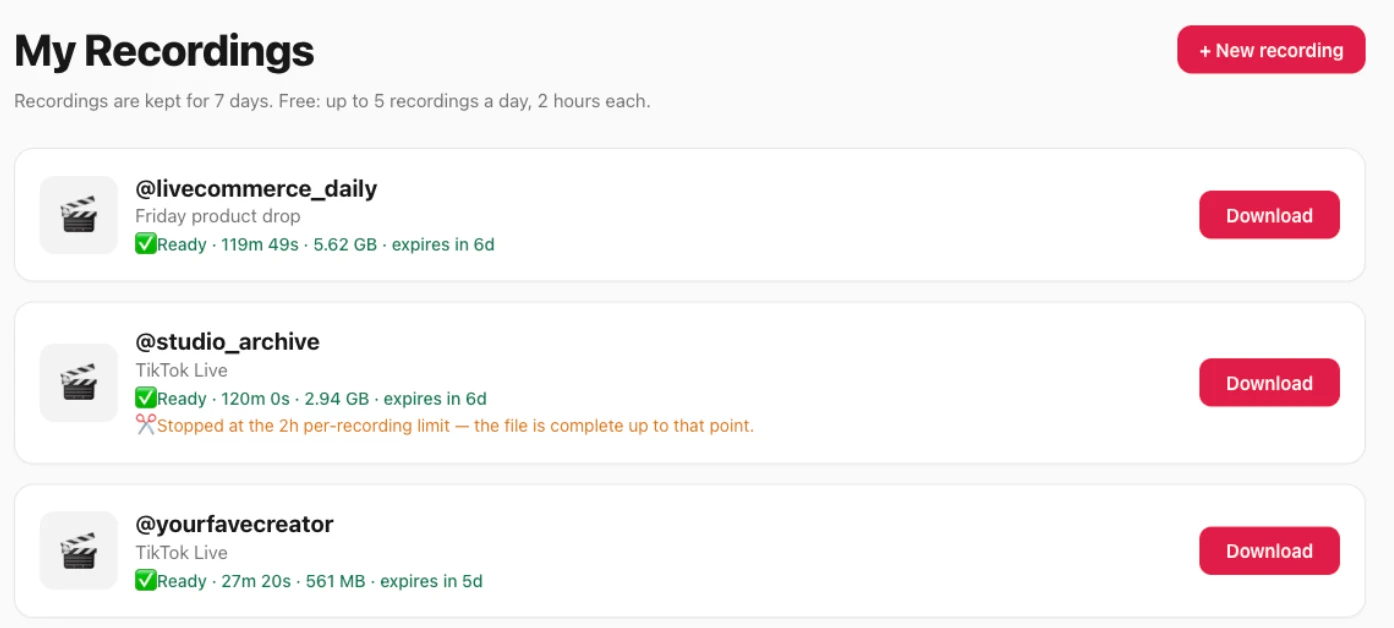
Why the file is clean comes down to mechanism: the server copies the live stream's own bytes instead of filming a screen, so there's no re-encode and no overlay. You can start free — sign in with Google or email for 2 recordings a day, no card, with every recording tied to your account — and it works for public Kick lives too.
Honest comparison: ways to save a TikTok live in time
Scored for the real job of keeping a live before it's gone. Our column isn't all ✅ — TikTok's own Save Replay wins for a creator's own stream, and screen recording wins on having nothing to set up:
| Way to save it in time | Cloud recorder | TikTok Save Replay | Phone screen record |
|---|---|---|---|
| Works for someone else's live | ✅ | ❌creator-only | ⚠️on-screen only |
| Works if you forgot to pre-set it | ✅ | ❌enable before | ✅ |
| Device can be off / you walk away | ✅ | ✅ | ❌screen stays on |
| Original quality (not a screen capture) | ✅ | ✅ | ❌ |
| Nothing to install or sign into | ⚠️Google sign-in required | ✅built into TikTok | ✅ |
| Free | ⚠️free plan: 2/day, 20 min each | ✅ | ✅ |
The honest read: if it's your live and you remembered to opt in, TikTok's own Replay is the simplest path — it's built in and needs no other tool. The moment it's someone else's live, or you didn't pre-set anything, recording it — ideally in the cloud — is the only thing that works.
The honest catch
Already ended and un-saved? It's gone. No tool can recover a live that finished without a recording — not ours, not any. If that's your situation, see whether a TikTok live has any replay; the short version is only the creator's opt-in copy, if they enabled it. Then set up to catch the next one. Beyond that, the cloud route has real limits worth knowing: you sign in with Google or email, and the free plan gives you 2 recordings a day, up to 20 minutes each — longer lives need Pro (up to 3 hours) or Studio (up to 6 hours). Saved files are kept 3 days on Free (7 on Pro, 30 on Studio), so download the ones you want in time. If a creator tends to go live when you can't be there to start a save, see auto-recording TikTok lives — it watches for them and starts on its own (free for one creator in the cloud; Pro and Studio cover up to 5 or 20).
Save the next one in time
Paste a live link and start recording free — before the stream disappears.
FAQ
Does TikTok save lives automatically?
Not for viewers — there's no automatic save or replay of a live you're watching. For creators, TikTok can post a replay for up to 30 days, but only if “Save LIVE Replay” was turned on before the broadcast.
Can I save someone else's TikTok live?
Yes, if you capture it while it's live — by screen recording it, or by pasting the link into a cloud recorder. TikTok gives you no built-in way to save another person's live, so recording it yourself is the only route.
Can I turn on saving after the live already started, or after it ended?
TikTok's built-in Save Replay and Save to device both have to be set before you go live, and can't be switched on afterward. If a live is already running, recording it (screen or cloud) is your only way to save it. If it's already ended un-saved, it can't be recovered.
How long does a TikTok LIVE Replay last?
Up to 30 days, for the creator, if they opted in — after that TikTok removes it. A recording you save yourself has no such expiry (though our cloud recorder keeps files 3 days on Free, 7 on Pro or 30 on Studio, so download them).
Is there a free way to save a TikTok live?
Yes. Screen recording is free, and the cloud recorder here has a free plan — sign in with Google or email for 2 recordings a day, up to 20 minutes each, no card. Paid plans record up to 3–6 hours per live.
Can I save a TikTok live on iPhone or Android?
Both. Each phone has a built-in screen recorder, and the cloud recorder runs in the browser on either — and because it records on the server, your phone doesn't have to stay on the live.
Will the streamer know I saved their live?
TikTok doesn't show a host a “someone saved your live” notification. A cloud recorder captures the public stream server-side, so nothing appears on their screen. Keep the recording for yourself rather than reposting it.
Bottom line: saving a TikTok live is a race against the end of the broadcast — TikTok keeps nothing for viewers and only a short, opt-in replay for creators, so the save has to happen while the live is on. If it's your stream, turn on Save LIVE Replay before you start. If it's someone else's — or you forgot — record it as it airs, and a cloud recorder by link is the version that doesn't chain your phone to the stream. For more on what TikTok does and doesn't keep, see TikTok LIVE replay.