Can You Screen Record a TikTok LIVE? Yes, But There's a Cleaner Way
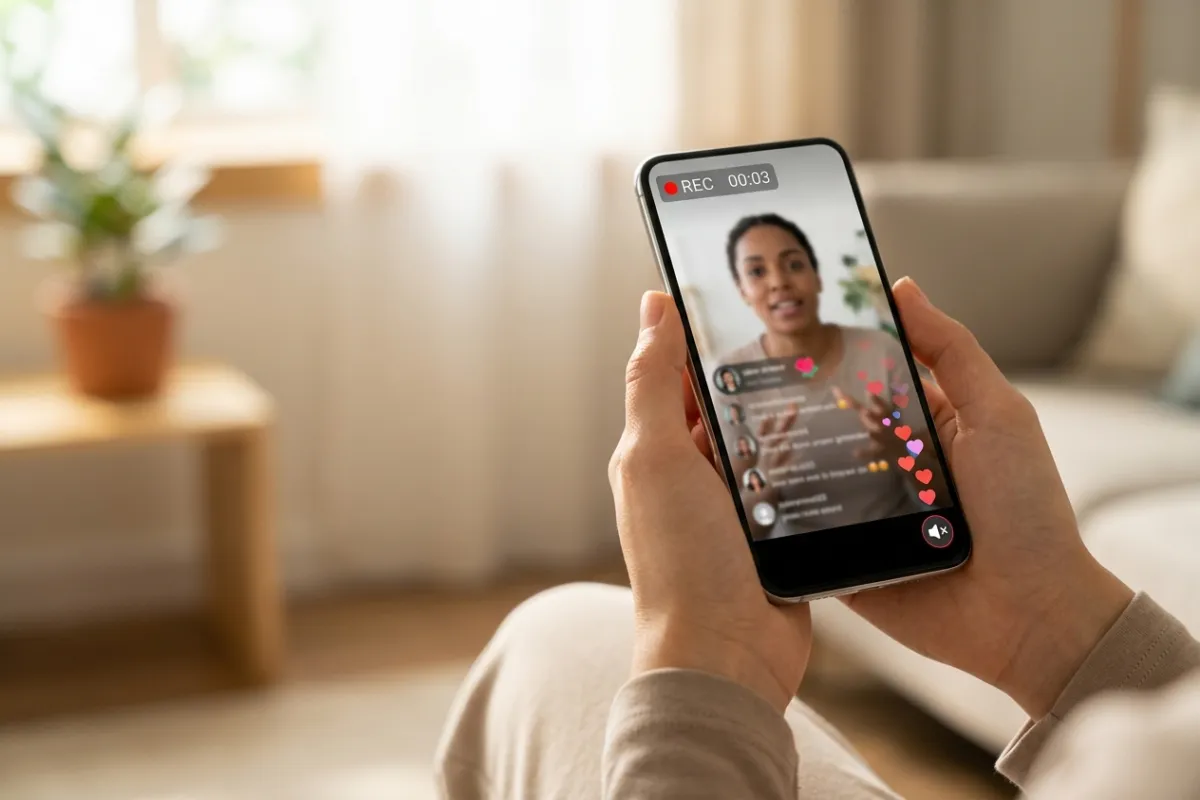
You're watching a live worth keeping, you swipe down and hit Screen Record, and you feel clever. An hour later you check the file: the audio is missing, the comment feed is stuck across the video, and your phone was useless the entire time because it had to stay on the live.
Short version: yes, you can screen record a TikTok LIVE on any phone or computer — but it's the messiest way to keep one. It ties up your device for the whole broadcast, it very often comes out silent, and what you save is a capture of your screen — TikTok's buttons, hearts, and comments included — not the stream itself. It works, and sometimes it's exactly what you want. But for a clean copy of a long live, there's a cleaner way.
Can you screen record a TikTok LIVE?
Yes — TikTok doesn't block screen recording of lives, and every modern phone and computer can do it. iPhone and Android both have a built-in screen recorder; on a computer you've got the OS recorder or a desktop tool. Start it with the live on screen and it captures whatever's playing. The honest part is what "whatever's playing" means: you're not saving the broadcast, you're saving a video of your display showing the broadcast. That single fact is behind every screen-recording annoyance below.
Why your screen recording of a TikTok live has no sound
This is the number-one complaint, and it catches almost everyone once: you record a whole live, open the file, and it's silent. The reason is audio routing — a screen recorder saves the audio source you told it to use, and by default that's often the microphone (or nothing), not the sound the phone is playing. So it records the room, or silence, instead of the live.
- Android: in the screen-recorder tile settings, pick Media sounds (or "Device audio"), not just the mic. Leave it on microphone and you capture your surroundings; leave it off and you get silence. (Full walk-through: how to record a TikTok LIVE on Android.)
- iPhone: the built-in recorder captures internal audio by default — but long-press the Screen Recording control to confirm the Microphone toggle is set the way you want (usually off, so it doesn't pick up your room over the live).
- Mac / PC: the OS screen recorder often captures the mic but not internal system audio without extra routing software. That's why a Mac screen recording of a live is frequently silent.
If you've already recorded a silent one, there's no clean fix — you can only try to overlay audio in an editor, which rarely lines up. The real fix is to set the audio source before you start, or to not screen-record at all.
The other catches (beyond sound)
Even with the audio sorted, screen recording a full live has structural downsides, all flowing from "you're filming your screen":
- Your device is committed. The screen has to stay awake and on the live the entire time. It sleeps, you record black; a banner drops, it's in the file; you switch apps, the recording cuts or captures your texts. A two-hour live is two hours your phone can't do anything else.
- The TikTok interface is baked in. Hearts, the comment feed, the follow button, gift animations — all permanently in the video. You can't peel them off afterward.
- The quality is your screen, not the source. The recorder re-encodes what your display shows, at your screen's resolution, so it's a generation removed from the broadcast.
- Battery and storage. Long screen recordings drain the battery (keep it plugged in) and produce large files — a multi-hour capture runs to several gigabytes.
The cleaner way: record the stream itself, not your screen
The alternative is to record the broadcast, not your display. A cloud recorder like TokLiveRecorder does this: you give it the live's link, and a server captures the stream directly, so your phone is never involved after you press start. Paste the live's URL (tiktok.com/@username/live, or just the username), start the recording, then lock your phone and put it away — the server keeps capturing until the live ends or your plan's per-recording limit is reached (20 minutes free, up to 3–6 hours on paid plans).
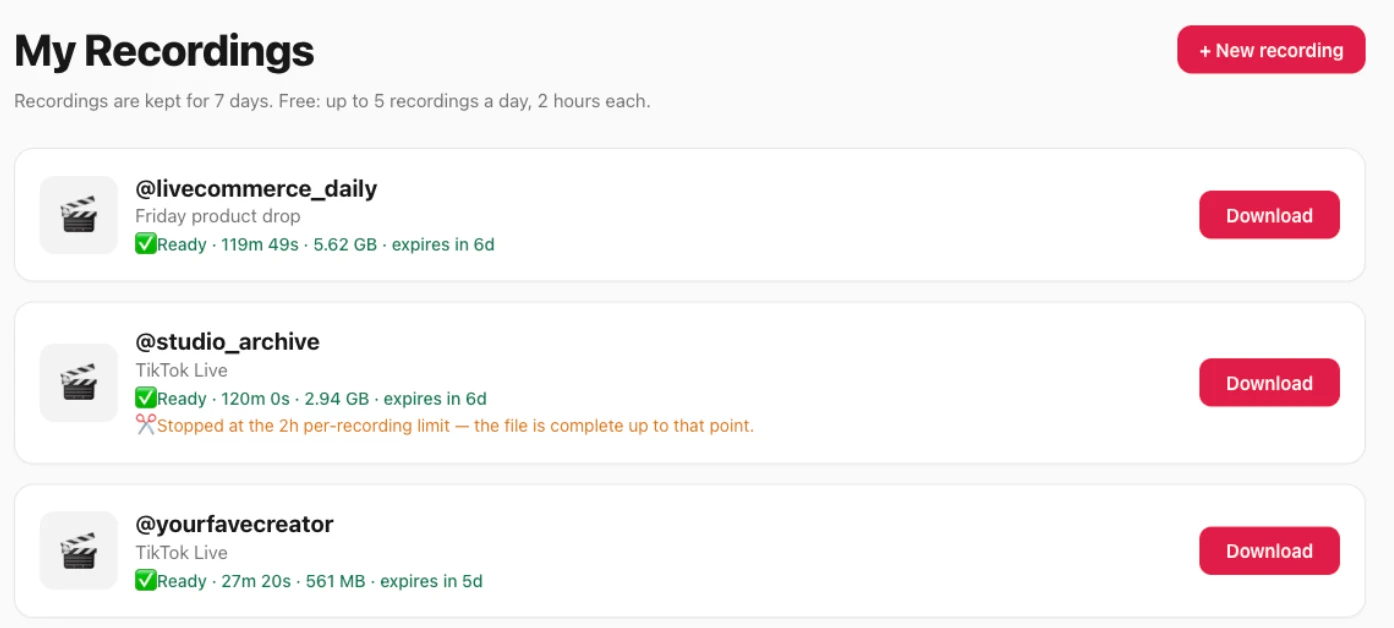
The reason it comes out clean is mechanism, not magic. The server copies the live stream's own bytes rather than filming a screen, so there's no re-encode, no UI layer, and no audio-routing guesswork — the audio is the broadcast's audio because it's the same file. You can start free (sign in with Google or email, no card), and it works for public Kick lives too.
Screen recording vs recording the stream
Scored for keeping a full TikTok live. Screen recording genuinely wins on "nothing to set up" — it's already on your phone — so our column isn't all ✅:
| Keeping a full TikTok live | Cloud recorder | Phone screen record |
|---|---|---|
| Audio just works (no routing to set) | ✅broadcast audio | ⚠️silent unless you set the source |
| Clean file (no TikTok UI / hearts / comments) | ✅ | ❌all baked in |
| Original quality (not a screen re-encode) | ✅ | ❌ |
| Device can sleep / you walk away | ✅ | ❌screen must stay on |
| Nothing to install or set up | ⚠️Google sign-in required | ✅already on the phone |
| Free | ⚠️free plan: 2/day, 20 min each | ✅ |
When screen recording is actually the right call
To be fair to it — screen recording isn't wrong, it's just narrow. It's the better pick when:
- You want a short clip, not a two-hour stream — a 30-second moment where babysitting the phone doesn't matter.
- You specifically want the TikTok interface in the video — the live comments, the gift animations, the reactions — because that is the thing you're saving.
- You're capturing your own reaction or commentary over the live and want it all in one screen take.
For those, the built-in recorder is quicker than anything else. It's only when you want a clean, full-length copy of the stream that recording the broadcast wins.
The honest catch (on the cloud route)
It only works while the live is on — neither method can recover a live that already ended without a recording (see whether you can watch a TikTok live after it ends). You sign in with Google or email, and the free plan gives you 2 recordings a day, each up to 20 minutes — Pro and Studio record up to 3 or 6 hours per live. Saved files are kept 3 days on Free (7 on Pro, 30 on Studio).
Record the stream, not your screen
Paste a live link and record it clean — full quality, real audio, no UI.
FAQ
Why does my screen recording of a TikTok live have no sound?
Because the recorder saved the wrong audio source — usually the microphone or nothing, instead of the phone’s media sound. On Android, set the screen recorder to "Media sounds"; on Mac, you need internal-audio routing software. Fix it before recording, or record the stream directly instead, where the audio comes built in.
Does screen recording capture the live comments and hearts?
Yes — it captures everything on your screen, including the comment feed, hearts, and any notification that pops up. If you want a clean video without the interface, you need to record the stream itself rather than your screen.
Does TikTok notify the streamer if I screen record their live?
TikTok doesn't show a host a “someone recorded your live” notification. Keep the recording for personal use rather than reposting it.
Can you screen record a TikTok live on iPhone and Android?
Both. iPhone’s built-in recorder captures internal audio by default; Android’s needs you to select "Media sounds." Either way the screen has to stay on the live the whole time.
Is the quality of a screen-recorded live good?
It's limited to your screen's resolution and re-encoded on the fly, so it's a step below the source. Recording the broadcast directly keeps the original quality.
Can I screen record a live without staying on it the whole time?
No — screen recording needs the live open and the screen awake for the entire broadcast. If you want to start a recording and walk away, use a cloud recorder that captures on a server instead.
Is there a free way that avoids all this?
Yes. The cloud recorder here has a free plan — sign in with Google or email for 2 recordings a day, up to 20 minutes each, no card (paid plans go up to 3–6 hours per recording) — and it sidesteps the audio and UI problems because it records the stream, not your screen.
Bottom line: you can screen record a TikTok LIVE, and for a short clip or when you want the on-screen reactions, it's the quickest tool you have. For a full-length live, it's the fragile option — it ties up your phone, comes out silent unless you set the audio source, and saves your screen instead of the stream. For a clean, original-quality copy without babysitting your device, record the broadcast itself.