How to Record a TikTok LIVE on Android Without Screen Recording
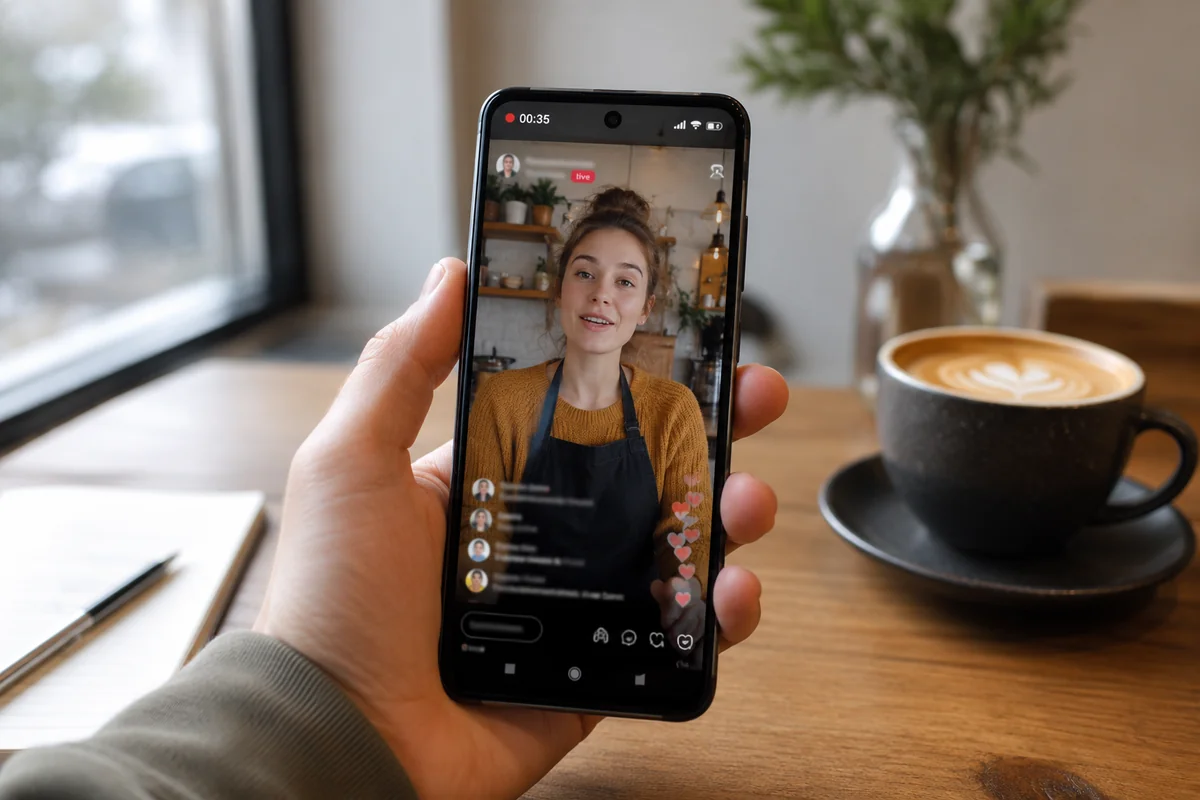
A creator you follow goes live at the worst possible time — you're about to leave, it's late, or you're in the middle of something — and you want the whole stream saved so you can watch it properly later. On Android there are two free ways to do that. One holds your phone hostage for the entire live; the other doesn't touch it.
The short version: to record a TikTok LIVE on Android without tying up your phone, paste the live's link into a cloud recorder in your browser — it captures the stream on a server and hands you a clean MP4. Android's built-in screen recorder is the zero-setup fallback, but it records your screen (comments and all), stops the moment the screen locks, and leaves the phone unusable while it runs. Here's how both actually behave, so you can pick the right one.
The real problem isn't "how do I start a recording"
Most "how to record a TikTok live on Android" guides stop at open quick settings, tap Screen Record. That's the easy part. Starting a recording takes three seconds. The real problem is everything that happens across the next hour of a live:
- The screen has to stay on the whole time. Lock it out of habit, or let it time out, and the recording ends right there — sometimes without you noticing until you check.
- Whatever happens on your phone lands in the file. A notification banner sliding down, an incoming call, you tabbing away to reply to a message — all of it either gets recorded or interrupts the capture.
- You save the screen, not the stream. The comment feed, the gift animations, the follow button, your status bar — all of it is burned into the video, at whatever resolution your display happened to be showing.
Starting a recording is trivial. Ending up with a clean, complete file of a long live — without babysitting your phone the entire time — is the actual job. That's the lens for the two methods below.
Method 1 — Android's built-in screen recorder
Every recent Android phone has a screen recorder in the quick-settings panel. It's the obvious first attempt because there's nothing to install.
- Open quick settings and find Screen Record. Swipe down twice from the top; if you don't see the tile, swipe to the second page or tap the edit (pencil) button to add it. Where it lives and what it's called varies by brand — Samsung, Pixel, and Xiaomi all put it in slightly different places.
- Choose the sound source, then start. This is the setting most people skip. Pick Media sounds (or "device audio"), not just the microphone — otherwise you capture room noise and the live's audio comes through thin, or not at all.
- Open TikTok and the creator's live, and leave it alone. From this point your phone is committed to the recording. Don't lock it, don't take that call, don't check the message that just came in.
- Stop from the notification shade when the live ends.
That's the whole method, and for a 20-second clip it's fine. Across a real live, the cracks show. The screen can't sleep, so the phone is doing nothing else for the duration. Anything that appears on that screen — a banner, a keyboard, the comments scrolling non-stop up the side — ends up in the final video. And because it's a recording of the display, the file is only as sharp as what your screen was rendering, re-compressed on the way out. It works, but "works" and "gives you a clean copy of the live" are not the same thing.
Method 2 — a cloud recorder (the phone-free way)
A cloud recorder like TokLiveRecorder moves the work off your phone entirely. Instead of filming your screen, it captures the public stream on a server:
- In the TikTok app, open the live, tap Share, then Copy link — or just note the creator's @username. The link is all a cloud recorder needs; you never hand over a login, and nothing gets installed.
- Open TokLiveRecorder in your browser, paste the link, and tap Record (sign in with Google or email the first time). The capture now lives on a server, not on your phone — which is the entire point of the difference you're about to feel.
- Lock your phone, switch apps, or put it in your pocket and leave. The recording doesn't depend on your screen staying awake, so none of the things that break a screen recording apply.
- Download the MP4 from My Recordings when the live ends — full source resolution, no comments overlaid.
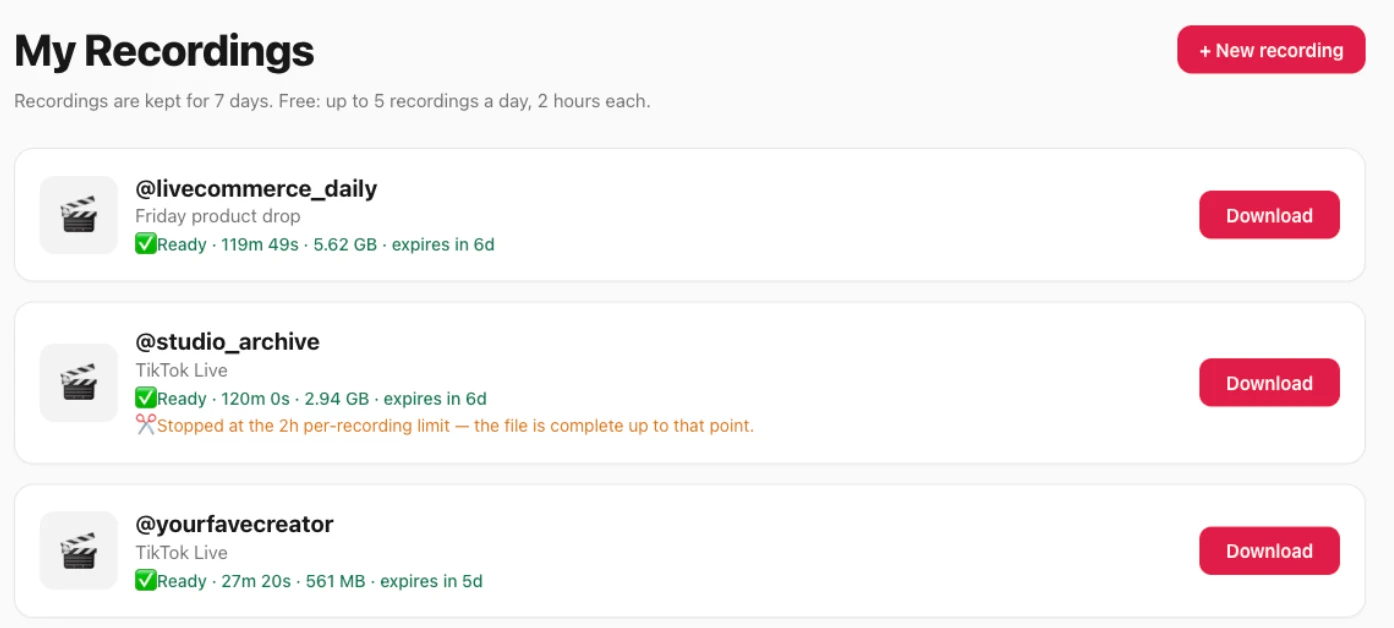
The reason the result is different comes down to what is being recorded, which is worth understanding before you trust it with a long live.
What actually ends up on your phone — side by side
We recorded a live with the cloud tool and lined the outcome up against how Android's screen recorder behaves on the same job. No invented numbers here — just what each one does:
| Recording a full TikTok live on Android | Cloud recorder | Built-in screen record |
|---|---|---|
| Phone stays usable while it records | ✅ | ❌locked to the live |
| Survives the screen locking or timing out | ✅ | ❌recording stops |
| Comments / gift animations / UI in the file | ✅none | ❌all baked in |
| Quality of the saved video | ✅source resolution | ⚠️limited to the display |
| Setup before you can start | ⚠️paste a link | ✅nothing to open |
The screen recorder genuinely wins one line — there's nothing to open, it's part of Android. Every other row is about the result, and that's where the cloud route pulls ahead.
Why the cloud file looks better than a screen recording
This is the part that explains the whole table. A screen recording is your phone re-drawing and re-compressing whatever the display shows, thirty-or-sixty times a second — including the comments, the UI, and any banner that slides in. You're saving a picture of the live, not the live.
A cloud recorder copies the broadcast stream's own data. There's no camera pointed at a screen and no re-encode step, so the file is effectively identical to what TikTok sent out — the creator's video, at its real resolution, with nothing painted on top. It's the difference between photographing a photo and keeping the original file.
The honest catch
Two limits to know before you rely on the cloud method. It can only record a live while it's actually airing — there's no way to reach back and grab one that already ended and was never recorded (wondering whether you can still watch a TikTok live after it ends? Short answer: only if someone recorded it). You sign in with Google or email, and the free plan gives you 2 recordings a day, up to 20 minutes each — Pro and Studio record up to 3 or 6 hours per live. Saved files are kept for 3 days on Free (7 on Pro, 30 on Studio), so download the ones you want in time. And if catching every stream by hand sounds tedious, see our guide to auto-recording TikTok lives (the free plan can auto-record one creator in the cloud; Pro and Studio cover up to 5 or 20).
Troubleshooting on Android
- The screen recording came out silent. You recorded the microphone instead of the device audio — start over and choose "Media sounds." The cloud method avoids this entirely, since it captures the stream's own audio track.
- "That doesn't look like a valid link." Make sure you copied the live URL and that the creator is currently live — a profile link, or a live that already ended, won't resolve.
- The recording cut off partway. With screen recording this almost always means the screen locked, a call came in, or the battery saver killed it. The cloud recorder can't hit this, because it isn't running on your phone.
- I can't find the Screen Record tile. Pull the quick-settings panel fully down, tap the edit/pencil icon, and drag "Screen record" into the active tiles. Some Xiaomi and Samsung builds hide it under a "more" page.
Which method should you use
- A quick clip of a live you're already watching → the built-in screen recorder. Nothing to set up, and 20 seconds of comments-on-screen doesn't matter.
- A full live, a long live, or one you want to walk away from → a cloud recorder. Your phone stays free, the screen can sleep, and the file comes back clean.
Record one now
Paste a live link in your Android browser and start free — 2 recordings a day, screen stays yours.
FAQ
Can you screen record a TikTok live on Android?
Yes — the built-in screen recorder works, but it captures the display (comments and UI included), needs the screen to stay on, and ties up the phone. For a clean, hands-free copy, a cloud recorder is better.
How do I record a long TikTok live on Android without my phone dying?
Use a cloud recorder. Because it runs on a server, you can lock the phone and let a long live record without holding the screen on or draining the battery — up to 20 minutes per recording on a free plan, or 3–6 hours on paid plans.
Does Android screen recording capture the live's sound?
Only if you select the media/device audio source before starting. Even then it records what's playing through the phone, not the stream directly — a cloud recorder captures the live's own audio.
Can I record a TikTok live on Android without them knowing?
TikTok doesn't notify a creator that a viewer recorded their public live, and a cloud recorder installs nothing on either device. Record only public lives and follow local laws.
Why does my screen recording of a TikTok live look blurry?
Because it's a recording of your display, then re-compressed — quality can't exceed what the screen showed. A cloud recorder copies the source stream, so it keeps the original resolution.
Is recording a TikTok live on Android free?
Yes. The built-in screen recorder is free with no time limit; cloud recorders are free to start, usually with a daily cap and a per-recording time limit (ours: 2 recordings a day, up to 20 minutes each, on the free plan).
Can I record a TikTok live I am not following?
If the live is public and you can watch it, you can record it — following isn't required. Stick to public lives and respect the creator's content rights.
Can I record a TikTok live on Android after it ended?
No. If it wasn't recorded while it aired, it's gone — TikTok doesn't save lives for viewers. Start the recording while the creator is still live.
Bottom line: the built-in screen recorder is right there, but it captures your screen, quits when the screen sleeps, and asks you to sit and watch. For a full live you'd rather walk away from, paste the link into a cloud recorder, lock your phone, and come back to a clean MP4. For other devices and methods, see our main guide on how to record a TikTok live.